
 Maulin Tolia 🔥



Photo by Samuel Sianipar on Unsplash
Google Sheets can be a really powerful tool when combined with Apps Script. Apps Scripts is like macros in MS Excel but with a lot more extensibility.
Picture this — You have an eCommerce site and you require a spreadsheet to be updated as and when an order is placed. You can pull the data using APIs at fixed intervals but a neater way to do this is to use Google Sheets as a webserver or a webhook.
In this article, I will show you how you can convert your Google Sheet into a web application to capture data and populate the sheet. This is a free alternative to using tools like Zapier but will require some coding experience.
Prerequisites
- Basic understanding of web services(
GET&POSTrequests). - Basic knowledge of JSON.
- Minimal Javascript experience.
Setting Up The Sheet
The first thing we need to set up is the sheet that we are going to use to capture the data.
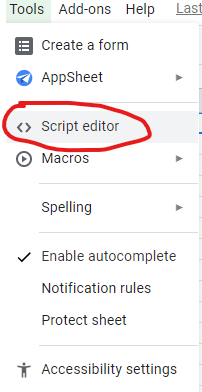
Navigate to Tools -> Script Editor. This will open a new tab for an Apps Script editor.
Creating the Web Server
To collect data we need to be able to capture the GET or POST request sent by the data source. To do this we can use the doGet and doPost function. Here is a sample code with both the functions:
Sample Function
You can add the code to the Code.js file in the Apps Scripts tab. The code is simple. The doGet and doPost functions are used to process GET and POST requests respectively.
Most of the time, data is sent as POST requests, so I will focus on the doPost function. The doPost function parses the JSON data using JSON.parse() from the request body(e.postData.contents) and appends the sheet with a new row with the data I require.
Apps Scripts can also parse CSV & XML Data.
Now we require a URL to send the requests to.
Deploying the Web App
Navigate to Publish -> Deploy as web app… on the Apps Scripts tab.
After a few seconds, a menu will pop-up:
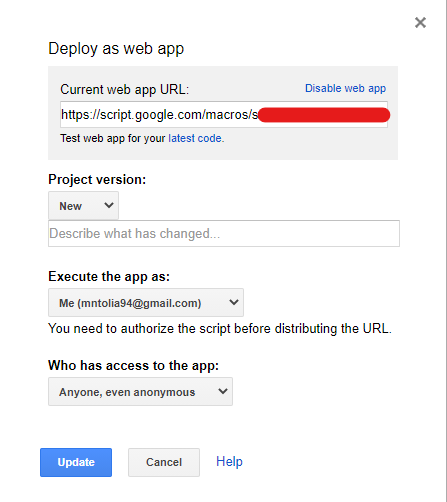
Deploy as web app screen
The URL for the web app will be listed on the top. Copy it. The URL will remain the same for each deployment.
Every time you change the code and deploy a new version set the Project version to New.
Set Execute the app as to Me.
The last field is Who has access to the app. Set this to Anyone, even anonymous.
This will allow anyone with the web app URL to send requests to it. You can always secure it with token authentication.
Once done, click the Update button.
Testing the Functions
To test if you have set up the Apps Script correctly simply copy the URL that is generated from the previous step and open it in a browser. The doGet function returns this response:
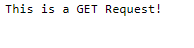
If the page does not open or it asks you to login, make sure your code is correct and you have deployed the Apps Script with the above configuration.
To test the doPost function I will send a few POST requests to the URL using Postman. This is the sample data I will use:
You can see in the GIF below, the Live Orders sheet gets updated automatically as I send the POST request.
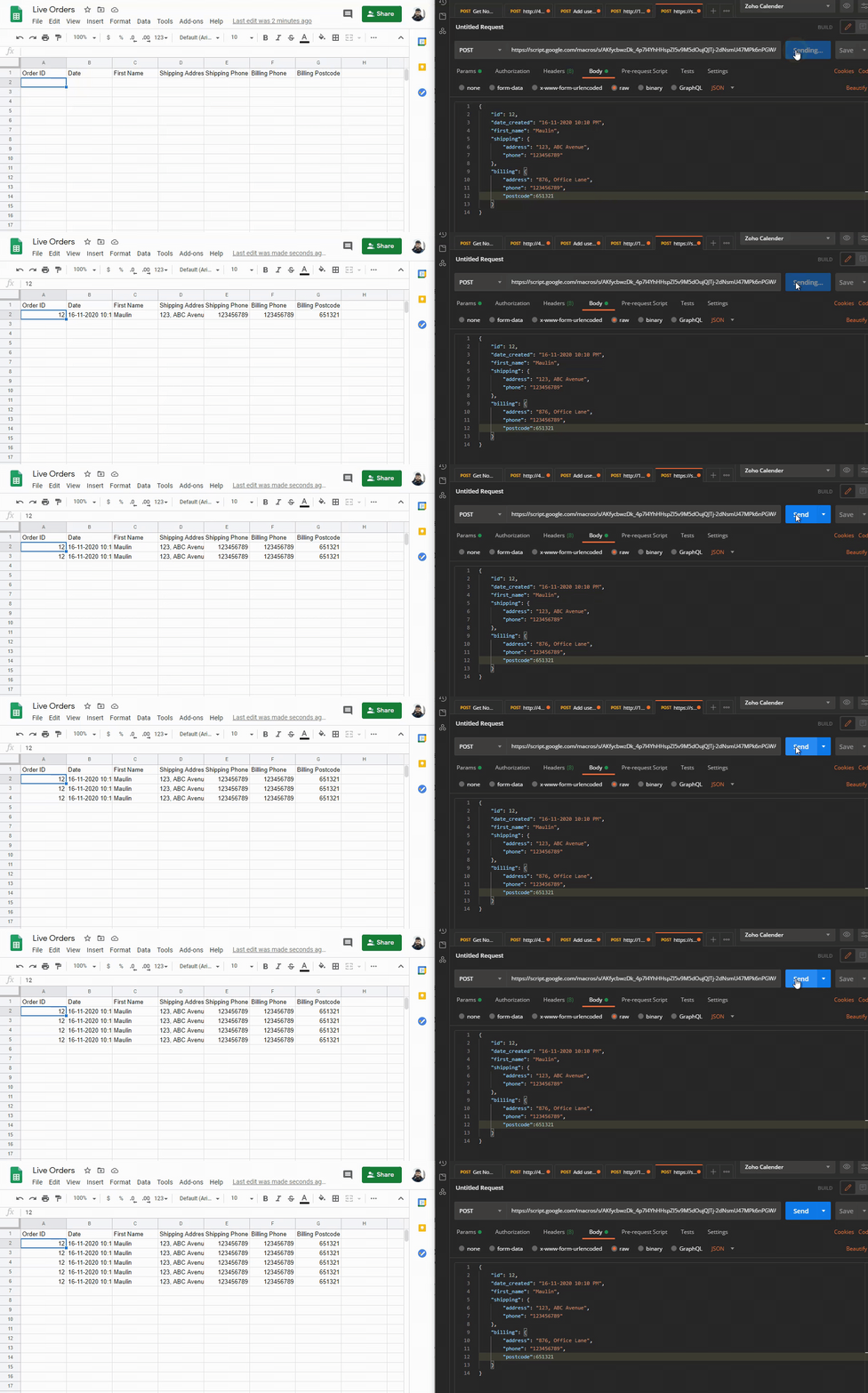
Now I can add the URL to my eCommerce site as a webhook to collect order data in real-time.
The applications for this are limitless. Here is another sheet I created to display a real-time graph with temperature & humidity data from various sensors.
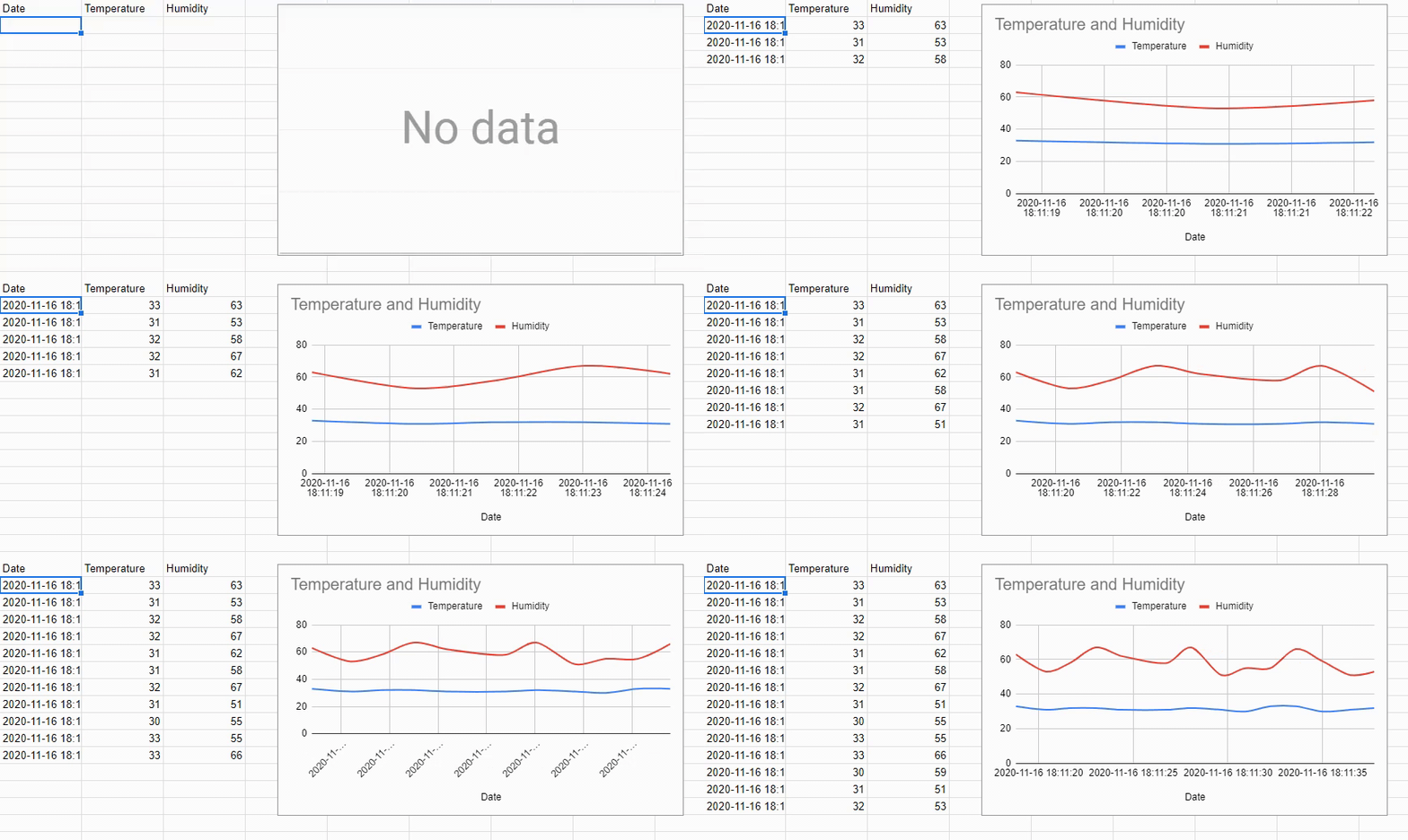
The biggest advantage of using Google Sheets is its simplicity for even non-technical users.
Limitations
Google Apps Scripts does have quotas depending on the type of Google account you have. (Consumer(free user), G Suite, G Suite Business).
The runtime limit of an Apps Script is set to 6 mins & 50 MB of data per call — which means you cannot send large data blobs to it.
The number of requests is also limited to 20,000 per day for a free user and 100,000 per day for a G Suite user which is enough for most use cases.
Conclusion
In this article, we saw how we can use Google Sheets as a simple web server & how to populate the sheet with the POST request data. You can also use this feature for other services like Google Docs, Slides, etc.
Depending on your use case, you can use Google Sheets to create a full-fledged real-time dashboard with visualizations.
Follow Up Article: https://medium.com/gitconnected/how-to-call-apis-directly-from-google-sheets-6e3d25c42e09