
 Fareed Khan


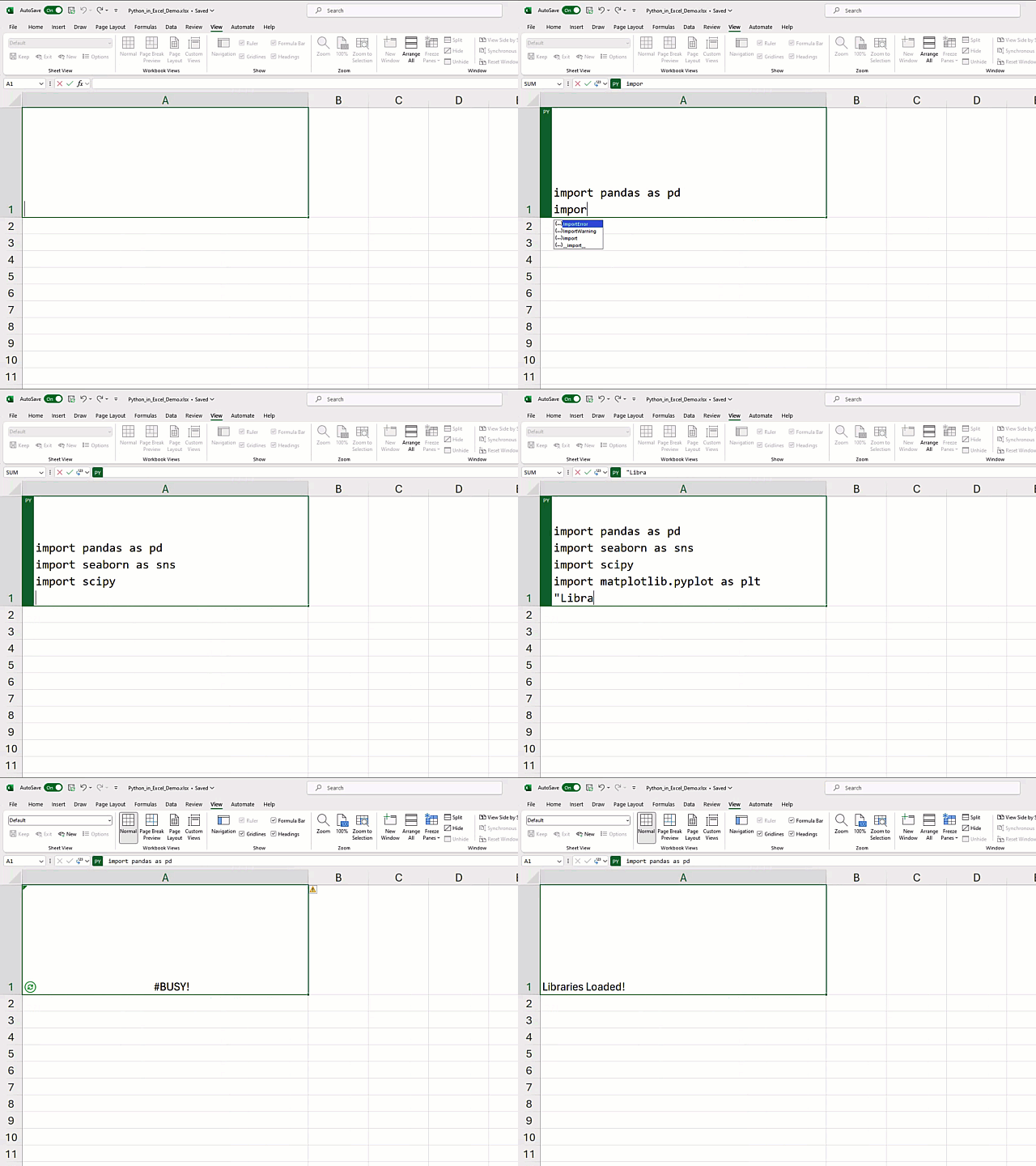
In a groundbreaking collaboration, Anaconda and Microsoft have introduced a game-changing innovation: Python in Excel. This revolutionary integration redefines how both Excel users and Python practitioners approach data analysis and brings a new level of accessibility to advanced analytics. The partnership marries the power of Python with the familiar interface of Excel, transforming data analytics into a more integrated, powerful, and accessible endeavor. In this blog, we’ll dive into what Python in Excel entails, its benefits, and how you can get started on your data analysis journey.
Official Blog — link
Try Python in Excel — link
A New Frontier in Data Analysis
Imagine being able to use Python directly within the familiar grid of Microsoft Excel, without needing to install Python separately. This innovation bridges the gap between data analysis tools and programming languages, making complex statistical analyses and dynamic visualizations accessible to a broader audience. This development isn’t just a new feature; it’s a revolution that reshapes the landscape of data analytics.
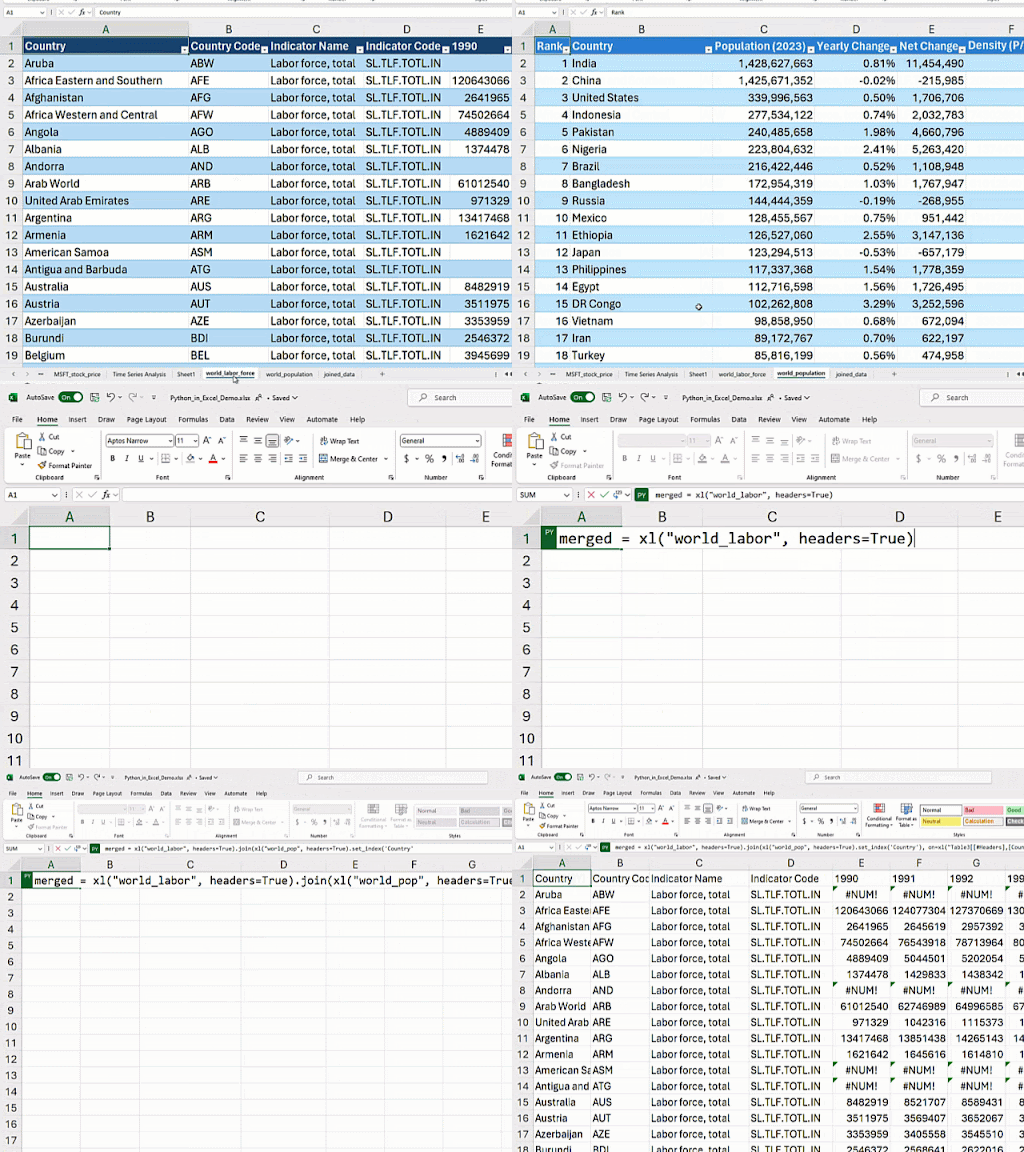
Python in Excel: Simple and Seamless
Using Python in Excel is incredibly straightforward. Just type “=PY(” in an Excel cell, followed by your Python code. Once you’re done, the results of your Python calculations or visualizations will seamlessly appear in your Excel worksheet. This integration brings the power of Python to your fingertips, enabling tasks like joining complex datasets right within Excel.
Expanding Horizons with Python in Excel
The integration of Python into Excel opens doors to a world of possibilities in data analysis:
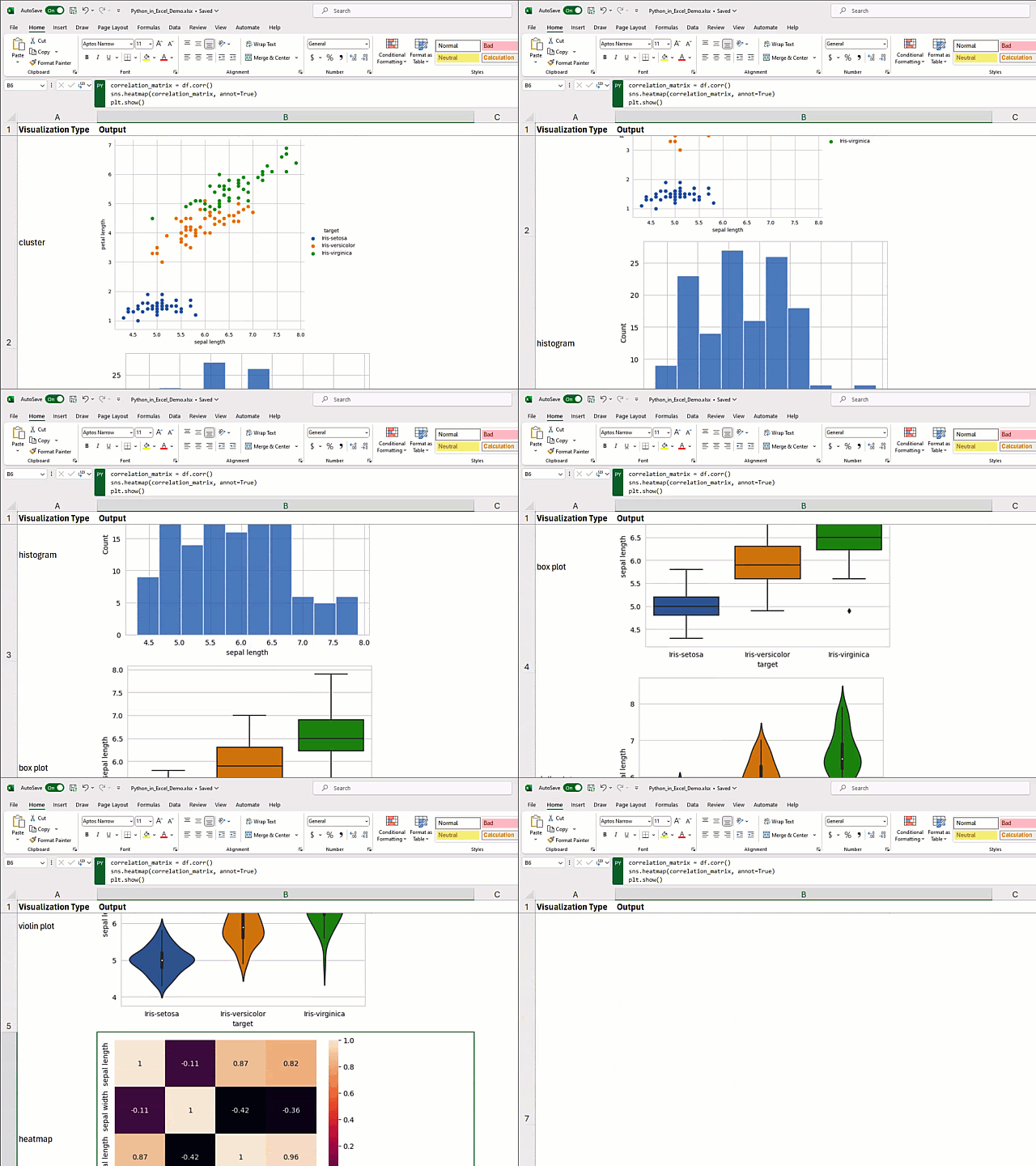
1. Advanced Data Visualizations
Leverage powerful Python visualization libraries like Matplotlib and Seaborn directly within your Excel workbook. Present your data in comprehensive, visually appealing ways.
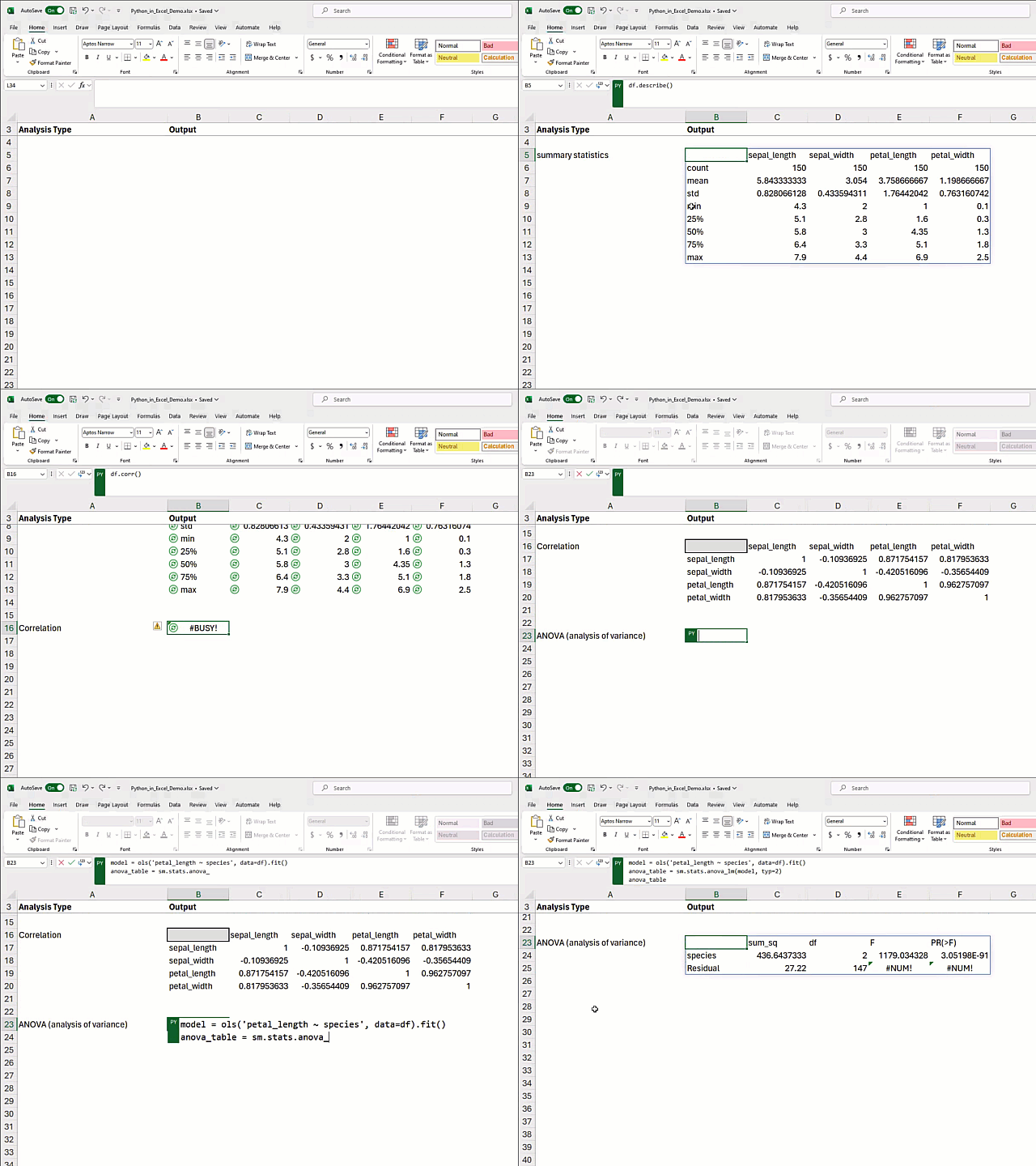
2. In-depth Statistical Analysis
Utilize robust Python libraries such as pandas and statsmodels to elevate your data analysis. Perform complex statistical tasks directly within Excel cells. You don’t need to be an expert — Anaconda’s curated Python libraries embedded in Excel make advanced analytics accessible to everyone.
3. Effortless Sharing:
Maintain the complexity and power of your Python analyses while sharing them in an Excel-friendly format. Collaborate seamlessly with colleagues who primarily use Excel.
4. Access to Rich Python Libraries:
Beyond just bringing Python into Excel, you gain access to a vast ecosystem of Python libraries. From data manipulation with pandas to advanced statistical modeling with stats models, and dynamic visualizations with Matplotlib and Seaborn, a universe of possibilities awaits within your spreadsheets.
Getting Started
If you’re eager to experience the potential of Python in Excel, you can start today. Windows users can sign up here to try Python in Excel, while Mac users will have access at a later date. Explore more about Python in Excel and take a step toward becoming certified in “Data Analysis with Python in Excel” through Anaconda.
Conclusion
The introduction of Python in Excel is a game-changer in the realm of data analytics. It breaks down barriers, making advanced data analysis tools accessible to a wider audience, from Excel users looking to expand their capabilities to Python practitioners seeking to integrate their scripts seamlessly. With this integration, the future of data analytics has arrived, promising a more integrated, powerful, and accessible approach to transforming data into insights.